Moving OneDrive Files to Proton Drive
Getting the OneDrive tree onto disk
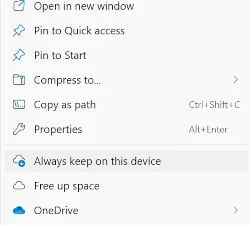
Getting every file out of OneDrive and onto local disk is the foundation step; Proton Drive’s client needs to see real files, not placeholders to files only in the cloud. The OneDrive client allows you to set your top folders to Always keep on this device, which will pull all your files down. If you have huge local diskspace, you might select them all at once for downloading.
Two things to plan for before you start. First, disk space: if you’re going to copy straight from the local OneDrive folder into Proton Drive in a single pass, you need roughly 2× your OneDrive footprint free locally, because both copies coexist until you delete the OneDrive side. Without that headroom (and more for any application metadata), you’ll have to resort to moving in chunks.
OneDrive, from a web application perspective, will happily store filenames and path lengths that Windows and NTFS reject on the way down - illegal characters, paths past the 260-character ceiling, etc. If you’ve been disciplined about folder structure for years (mine stayed shallow and I kept the filenames tight, so the sync ran clean), you’ll probably be fine. If you haven’t, the only way to find out is to run the sync and watch the OneDrive client’s activity feed for what it flags as it goes. It can be quite noisy with this, flashing up errors constantly for every single transgression. The fix has to happen on the OneDrive side: rename the offending files by shortening them, or shorten the paths in the SharePoint or OneDrive web app, but never locally. Local edits won’t propagate back through a sync which is presenting errors.
How Proton Drive’s structure differs
Before you can map this onto Proton Drive, it helps to be clear about what OneDrive actually is on the M365 side. There are three things that look like separate products but share one underlying engine. Personal OneDrive lives at yourdomain-my.sharepoint.com/personal/yourusername - note the sharepoint.com host, because OneDrive is SharePoint with a single-user wrapper and a reduced feature-set. SharePoint sites live at yourdomain.sharepoint.com/sites/sitename, each one with its own document library. Teams looks like a chat app with files attached, but every Team is backed by a SharePoint site behind the scenes, with each Channel occupying a folder under the Document Library root. The files you drop into a channel are sitting in a SharePoint document library you may never have visited directly. The OneDrive desktop client syncs your personal OneDrive automatically and lets you opt into syncing specific SharePoint and Teams libraries alongside it. So a migration isn’t necessarily one source - mine was four: my personal OneDrive plus three SharePoint/Teams libraries, all under the same tenant.
A note on tenants: if your OneDrive client is signed into more than one organisation, each tenant’s libraries appear under a separately-named root in Explorer - OneDrive - Company A, OneDrive - Company B. This post is about migrating files you own. Anything sitting in a tenant that isn’t yours - guest access, a client’s SharePoint, a library shared in by a partner organisation - isn’t yours to take. The moment those files leave OneDrive they’re orphaned: no link back, no permission story, nothing for anyone else to find them by. Migrate only what’s yours, and remember, you will still need the OneDrive sync client installed if you are continuing in those other orgsanisations.
Proton Drive doesn’t have any of this layering. There’s My files (your personal tree), Shared with me (other people’s folders shared in to you), and a sharing layer that operates per-folder rather than per-site. No tenant, no separate libraries with their own URLs, no Teams-as-storage abstraction. On the Proton side I kept personal files at the root of My files and created a single top-level folder called sites, with each SharePoint library landing as a sub-folder underneath. That preserved the mental model - “this came from a SharePoint site” stays visible - without dragging the SharePoint plumbing across with it. If your sharing model relied on SharePoint sites as units of access (members managed at site level, permissions inherited down the tree), you’ll be rebuilding that as folder-level shares one folder at a time on the Proton side.
Uploading at scale
With the source tree on disk and the destination shape decided, the upload itself just needs patience, not cleverness. Proton Drive’s Windows desktop client is the right tool - point it at My files, drop the local OneDrive export and the sites folder into their target locations, and let it run. The web uploader works but isn’t built for this: a browser tab close at the wrong moment costs you progress, where the desktop client survives interruptions and picks up where it stopped.
One mistake worth not repeating: make sure every file is genuinely on local disk before you start the Proton upload. My first attempt kicked off the Proton upload while OneDrive was still pulling files down on demand. The two clients were working through the tree in different orders - Proton would reach for a file Explorer claimed was there, OneDrive hadn’t got round to downloading it yet, and Proton would sit waiting until it timed out. The fix is the Always keep on this device step from earlier in this post, applied to the whole tree, with enough time given for the OneDrive client to finish before Proton starts. Don’t trust file existence in Explorer - placeholders look like real files. Trust OneDrive’s own status: every folder showing the green tick, the sync activity quiet. Anything still missing at that point will get pulled opportunistically as OneDrive sees fit, but the tree is consistent enough for Proton to walk it without tripping.
Once the local copy is genuinely local, the upload itself is straightforward. On a domestic 300Mbps upstream, 40GB went in under an hour. The shape is what you’d expect - steady throughput on the bulk of it, then a longer tail at the end as the client reconciles smaller files and metadata. Nothing failed in the second pass.
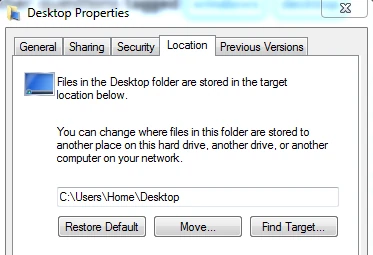
If, like me, you also maintain your Windows “special” folders in OneDrive (Desktop, Downloads, Pictures, Videos etc), these are easily moved to Proton Drive. Right click the special folder in question, select the Location tab, and click Move. Navigate to the same folder in Proton that you just copied, select and Save. Click Apply. Windows will ask you if you want to copy the contents: unless you’ve left a big gap between your data copy and this step, you don’t need to move any files again.
Sharing links - how Proton Drive compares
OneDrive and SharePoint share a fairly rich sharing model, depending on the level of sharing permitted from your tenant - links scoped to anyone with the link, people in your organisation, specific people, with optional passwords, expiry dates, and edit-or-view permissions. Proton Drive’s sharing is leaner but covers the cases that actually matter once you’ve left the M365 ecosystem. You can create a public link to any file or folder, set a password, set an expiry, and choose between view-only and editor access.
Note: Those controls - password, expiry, view-or-edit - apply to public links. When you share a folder directly with another Proton user by their email address, there’s no expiry to set and no password to attach; the access just exists until you remove it. So if you share with a specific person and later change your mind, you have to remember to go back and revoke their access manually. Public links forget about themselves on the date you set; named-user shares don’t.

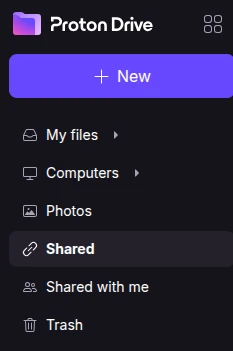
Visibility of shares is also handled differently. Proton Drive’s left-hand menu has Shared (links and folders you’ve shared out) and Shared with me (things others have shared to you) as two separate top-level entries. Both are one click away from anywhere in the app. OneDrive’s Shared menu lumps the two together and makes you click into a sub-tab to see what you have shared out - easy to forget about, easy to lose track of, and most people I’ve dealt with never knew it was there. Putting “what am I exposing” on the front page is a small UX choice with an obvious privacy logic behind it: the things you should periodically audit are the things you should be able to find without hunting.
The structural difference is who you can share to. OneDrive leans on your M365 tenant - there’s an implicit directory of colleagues, and “share with people in your organisation” does useful work without you naming anyone. Proton has no equivalent. Every share is either a public link that anyone holding it can open, or a share to a specific person by their Proton email address. That second route means the people you intend to collaborate with need Proton accounts of their own. For one-off “here’s a file, take a look” sharing it makes no difference - the public link works the same as it did in OneDrive. For ongoing collaboration with the same handful of people, it’s a real prerequisite to flag with them up front. This is a hard design choice, incorporating the Principle of Least Privilege, which I really like.
I started from zero shares on the Proton side, because the M365 side was being dismantled rather than tidied. This series isn’t really a data migration with M365 left running quietly in the background, but rather a detachment from the M365 ecosystem altogether. As each tranche of data came across to Proton, the SharePoint site it had lived in was purged, and the Teams that wrapped that site went with it. Once the sites were gone, the external guests that had been invited into them were orphaned and got purged in turn. The sharing layer wasn’t ported across because there was nothing left to port from. If you’re planning to keep M365 alive for some other reason and only move the files, your sharing story will look different. If you’re going all the way, the cleanup falls out of the migration itself rather than being a separate task.
Editor access on a shared folder, when both sides are inside the Proton ecosystem, behaves the way you’d expect - proper co-authoring through Proton Docs, the replacement for the M365 web apps. Password-protected links and expiry both worked as advertised, with nothing quirky to report. That’s the bridge into what you give up versus OneDrive, which is the next section.
What’s still missing vs OneDrive
The honest answer about what you give up depends on which bits of M365 you actually used, and on whether you understand why certain things work differently on Proton. The headline answer is that Proton’s architecture is the point. Your files sit in an encrypted container only you can open. Microsoft’s server-side indexing of every Word doc and PDF in SharePoint isn’t a feature Proton chose not to build - it’s a feature Proton couldn’t build without breaking the privacy guarantee; that’s my entire reason to be there. The same logic runs through everything: email is fully searchable, but the search index is generated locally in your browser and lives on your device, not on a server that has any view into your inbox.
Proton Drive search works the same way. The first time you open Drive in a browser or app and click into the search field, it indexes your file metadata locally and that index lives in that browser, on that device. Open Drive on a different device and the indexing happens again there. It’s a small one-time wait per device, and after that, search works offline against your local index.
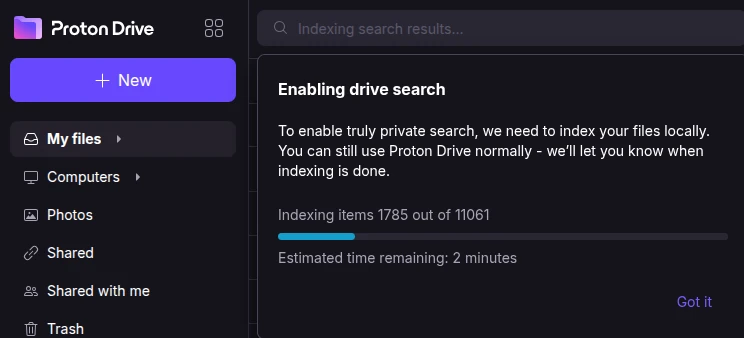
What this means in practice is a real change in how you find things. Server-side full-text search inside document bodies isn’t part of the deal. If you live in PDFs and need to search their contents, the answer is to keep them locally and let your operating system’s indexer do that job - Spotlight on Mac, Windows Search on Windows. That’s a tradeoff I’m comfortable making, and Proton will suit anyone with reasonably mature file and folder discipline. If your habit was to dump everything into one library and rely on M365 to find a phrase from inside a document three years later, this is the part of the migration that needs the most adjustment.
The integration surface is also gone - Outlook attaching files from OneDrive, Teams threading files into a chat, the rest of the M365 mesh. Proton Docs covers documents and spreadsheets in the browser with proper co-authoring inside the Proton ecosystem; it isn’t feature-for-feature with Word and Excel on the web, and if your daily work depended on advanced Excel features or the full PowerPoint pipeline you’ll feel that.
The thing I expected to miss but didn’t was SharePoint and Teams themselves - the apparent power of all that configuration, the sites and channels and permissioning tools. In practice it was overhead I didn’t need. The clearest sign of how much overhead: there are now literally hundreds of Microsoft 365 Message Centre advisories I can blissfully ignore.